Extra Invoice Features
Pay Feature
This new feature allows both admins and parents to pay for invoices with Open, Past Due, and Uncollectible statuses. Payments can be processed via the following pages:
- Parent Portal: Through the ‘Receipts’ page.
- School Portal: Through the ‘Invoices’ page.
Steps to pay an ‘Open’, ‘Past Due’ or ‘Uncollectible’ Invoice
- Locate the invoice with ‘Open,’ ‘Past Due,’ or ‘Uncollectible’ status on the ‘Invoices’ page.
- Click on the three dots (menu) next to the invoice.
- Select the ‘Pay’ option from the menu.

After selecting the ‘Pay’ button:
-
A new tab will open and take you to the payment form.
Enter the required payment details:
- Card Number
- Expiration Date
- Security Code (CVV)
- Submit the payment to complete the process.
After a successful payment:
- The invoice status will change from 'Open', 'Past Due', or 'Uncollectible' to 'Paid'.
- Once the invoice is marked as 'Paid', the refund feature becomes available for the invoice, allowing the admin to initiate a refund if needed.
Send Invoice Feature
Send Invoice Feature allows admins to send another copy of the invoice to the recipient quickly.
To resend an invoice:
- Navigate to the ‘Invoices’ page.
- Click on the three dots (menu) next to the invoice you want to resend.
- Select the 'Send invoice' button.
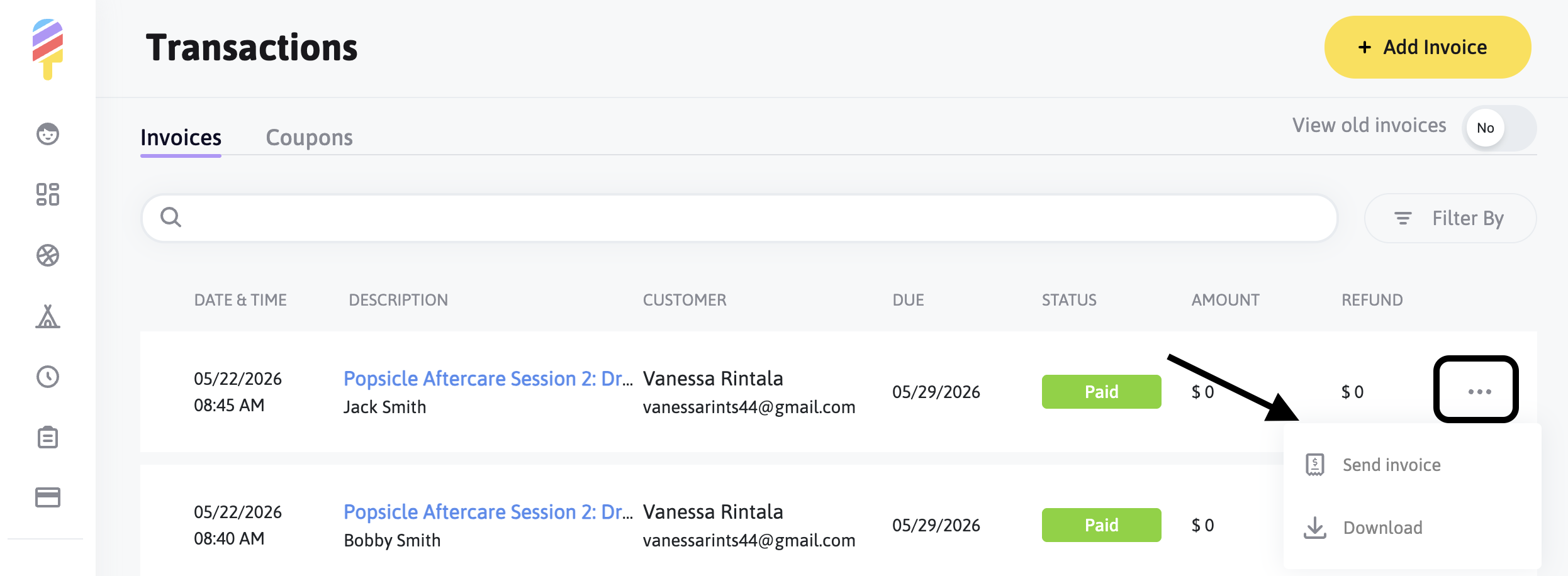
When an invoice is resent successfully, a confirmation message will appear.
The feature is available for invoices with one of the following statuses: Open, Past Due, Paid, and Uncollectible.
Download Feature
With the Download feature, admins can easily download an invoice.
Only Invoices with the 'Paid' are available for download.
To download an invoice:
- Navigate to the ‘Invoices’ page.
- Click on the three dots (menu) next to the invoice you want to download.
- Select the 'Download' button.
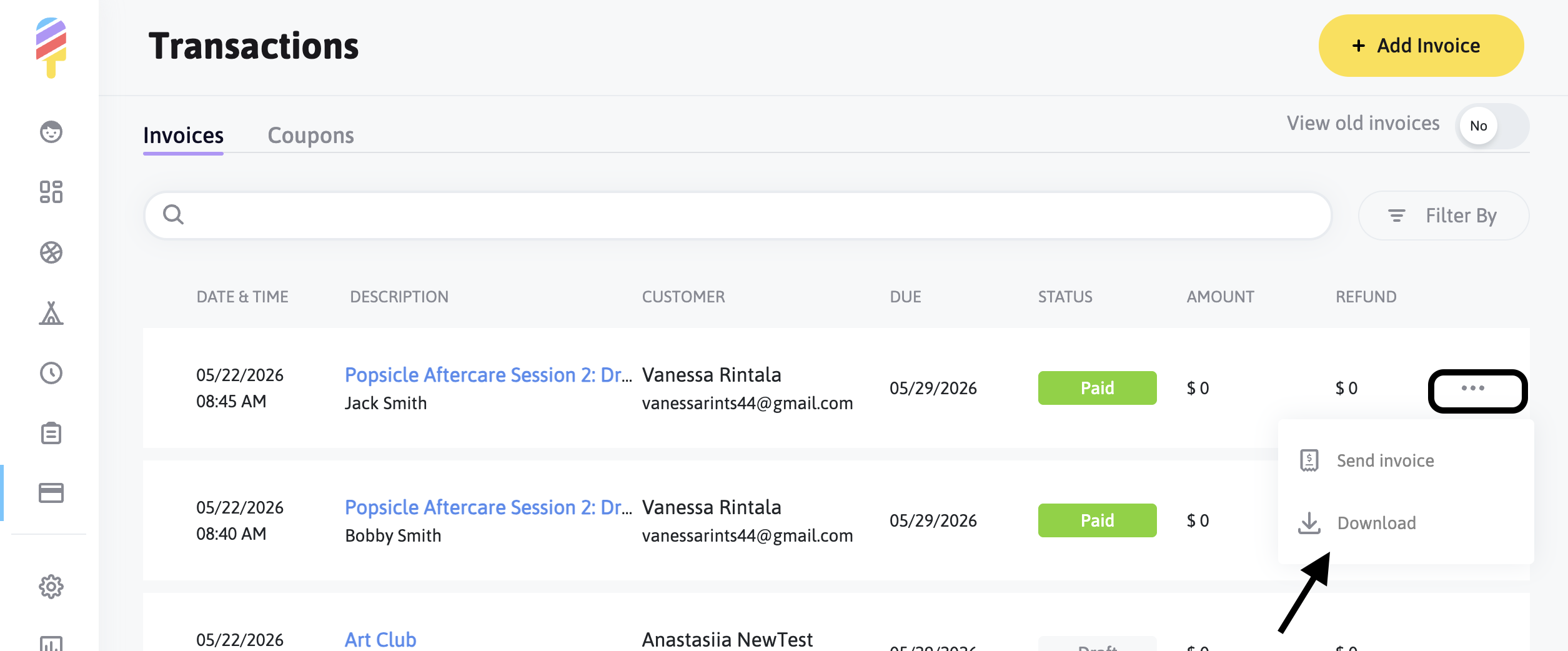
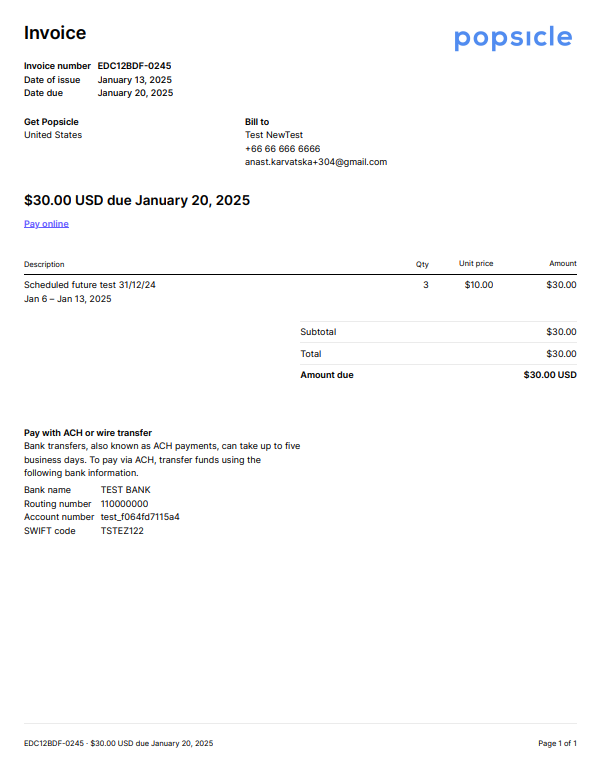
Once the invoice is downloaded, you can open the PDF file to review the details.
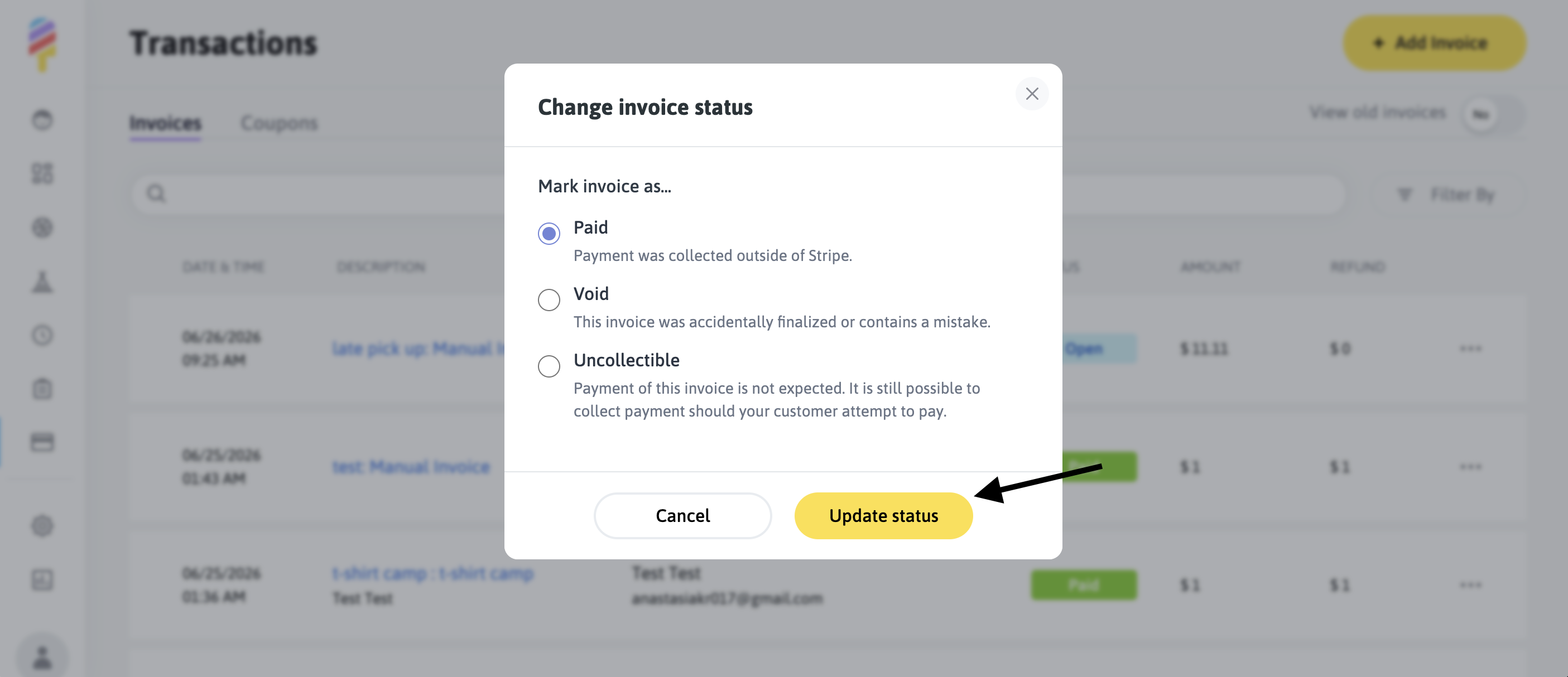
Change Invoice Status Feature
This feature allows admins to update invoices with Open, Past Due, and Uncollectible statuses.
Steps to change status for an ‘Open’, ‘Past Due’ or ‘Uncollectible’ Invoice
- Locate the invoice with ‘Open,’ ‘Past Due,’ or ‘Uncollectible’ status on the ‘Invoices’ page.
- Click on the three dots (menu) next to the invoice.
- Select the ‘Change invoice status’ option from the menu.
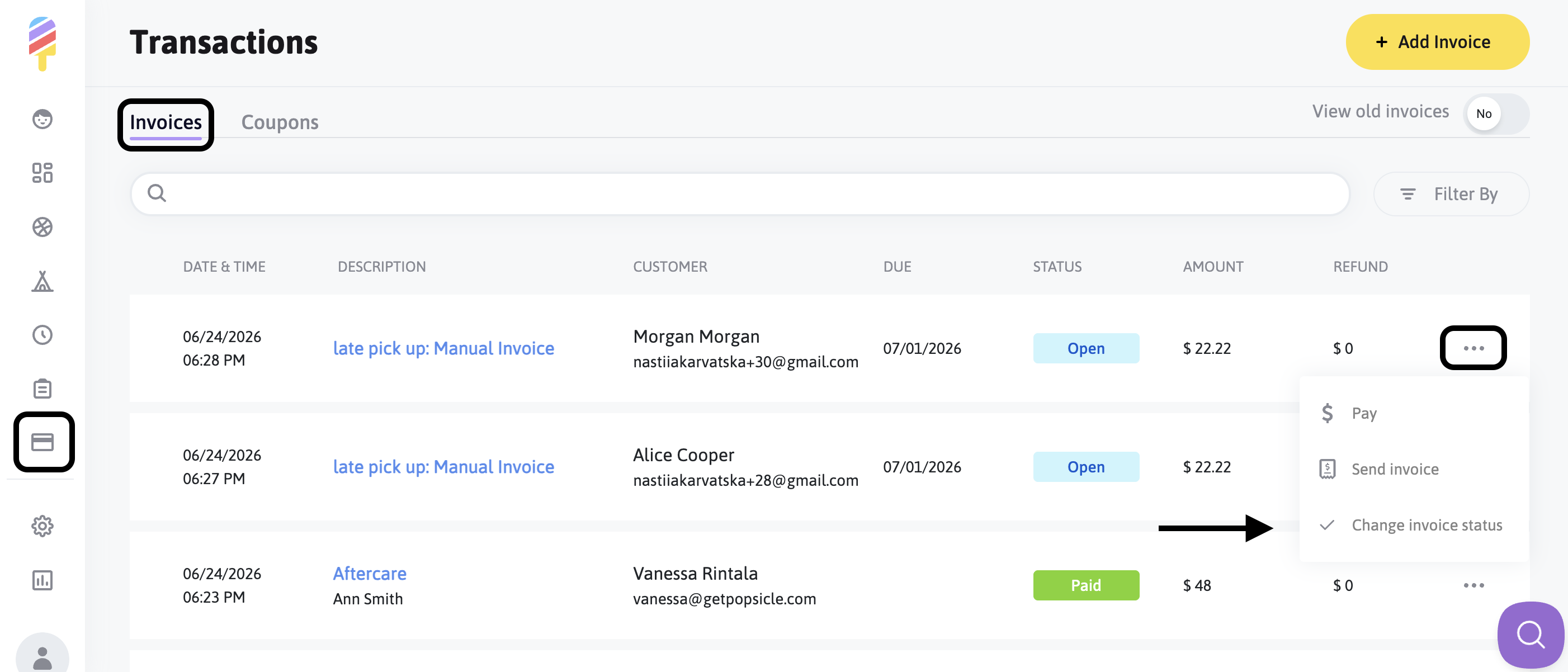
After that, a modal window will open. From there, select the appropriate status and click "Update Status" to apply your change.