
Connecting to BlackBaud
- Go to Blackbaud Marketplace, find the listing, and click Connect
- https://app.blackbaud.com/marketplace/applications/4f5bd563-8dcf-41f8-af44-5232d0690361?appdetails-active-tab=overview
- As a platform manager, go to Settings > Apps
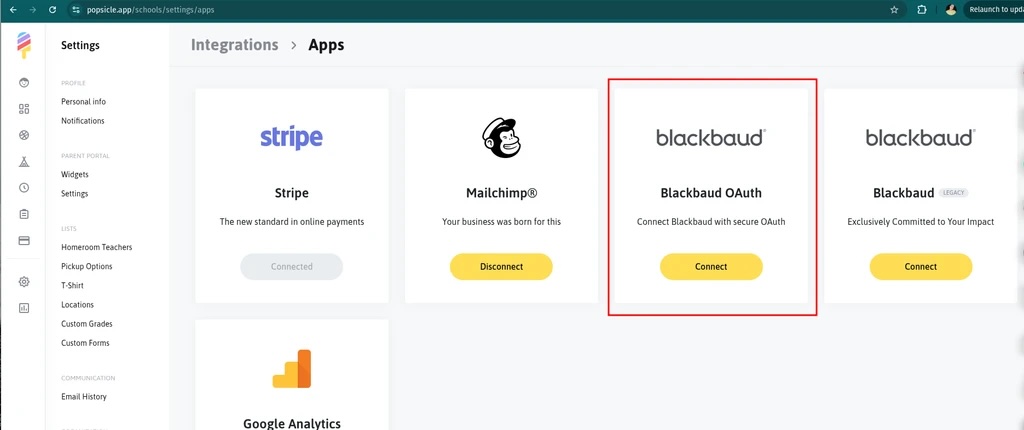
- Click Connect for BlackBaud OAuth.
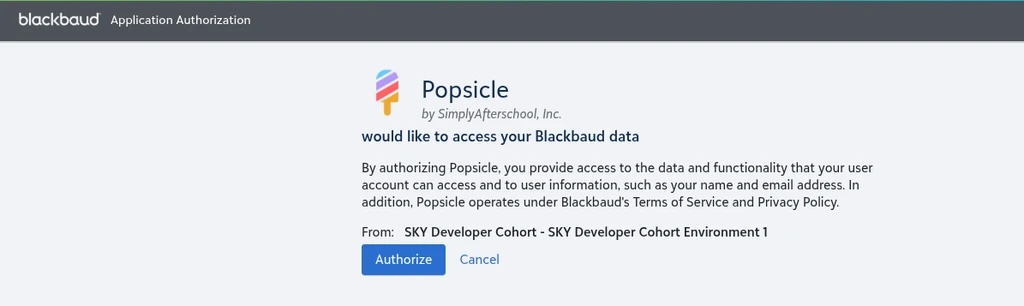
- You will be redirected to BlackBaud and asked to grant Popsicle access. Click Authorize.
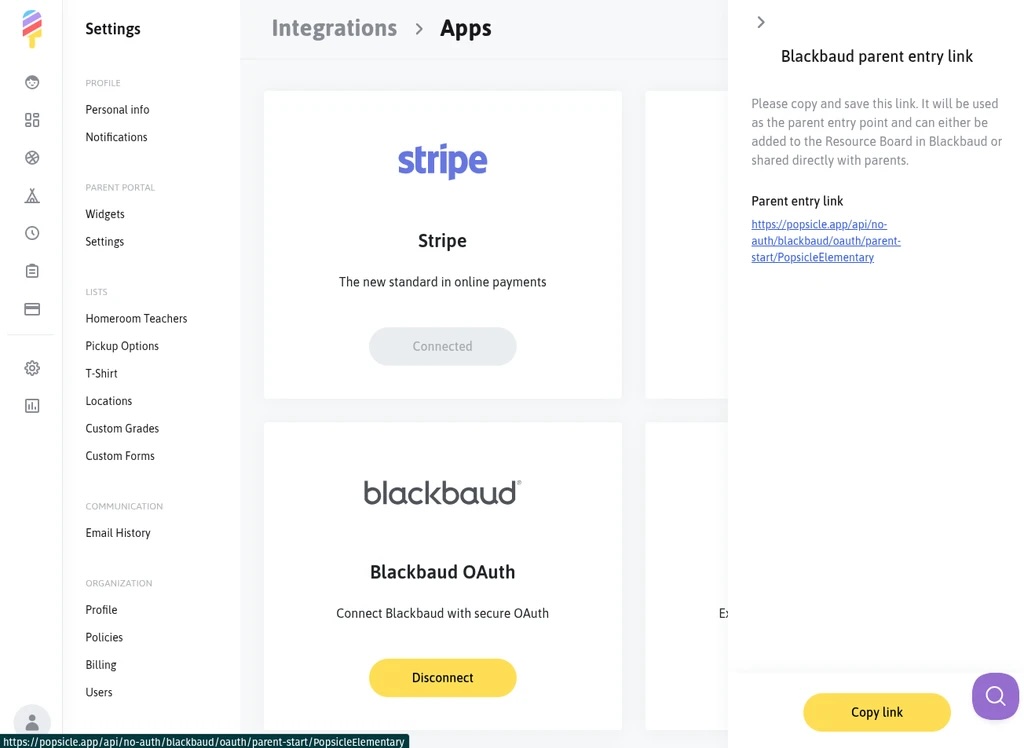
- After the connection is complete, copy the Parent Entry Link displayed in Popsicle.
Add Parent entry point to Popsicle in BlackBaud
- As a platform manager, navigate to Content → Additional content types → Links
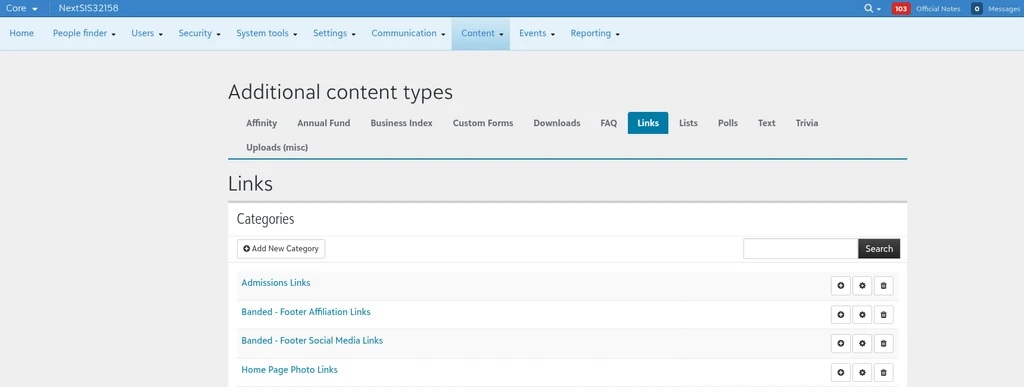
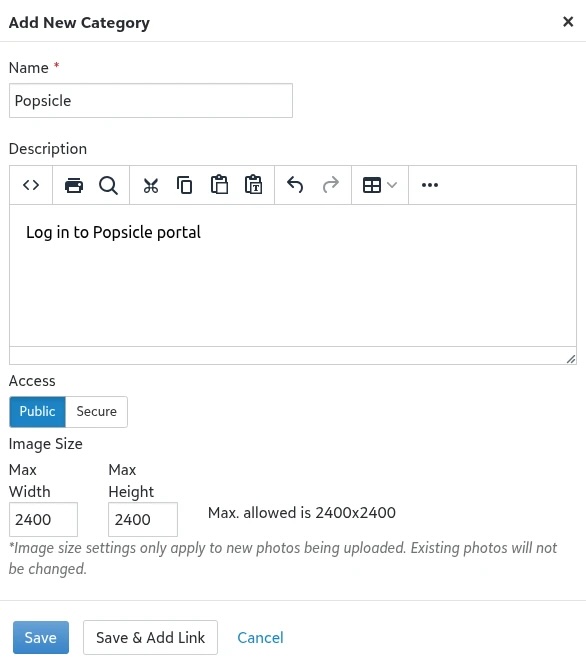
- Click Add New Category, create a category named Popsicle, and click Save.
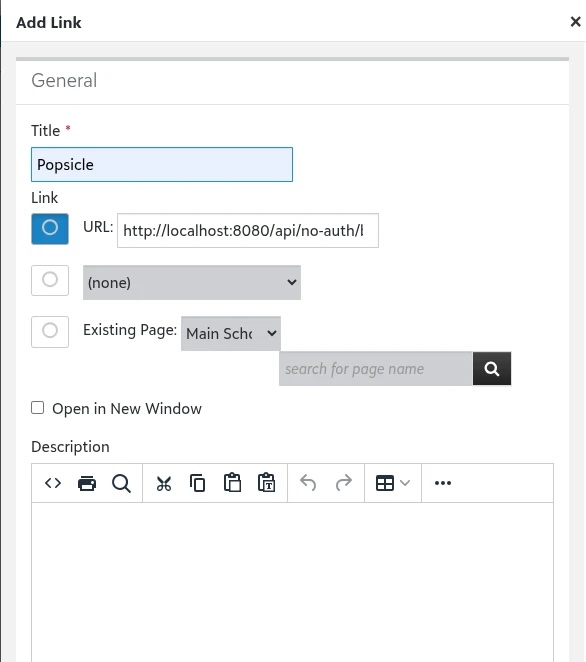
- To the newly created category Add Link. In the Link field, paste the Parent Entry Point link that you copied from Popsicle after completing the connection.
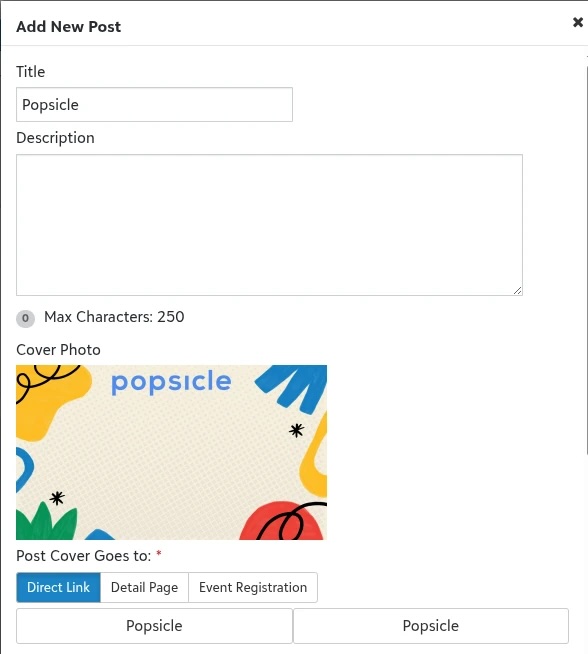
- Go to Content → Resource board → Add Post → Enter the Title (Popsicle), Description, and add a Cover photo*.
- For the Post Cover, select Direct Link.
- Select the category you created in the previous section.
- Select the link you created in the previous step.
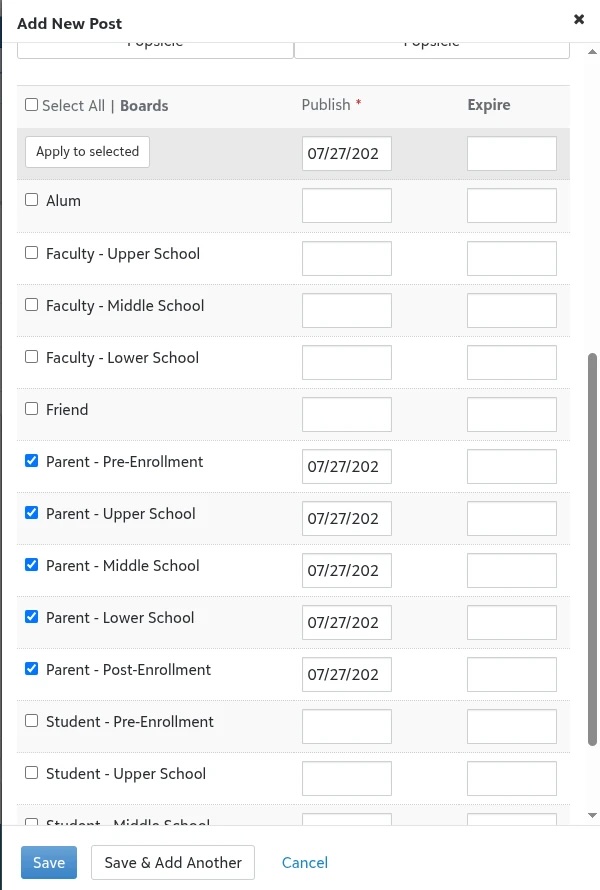
- Choose the appropriate Resource Board(s) and click Save.
*Popsicle logo that you can use as Post cover photo:

Data Synchronization
All information is synchronized each time a parent logs in. Any updates made in BlackBaud will be reflected in Popsicle during the next parent login.
Information Collected by Popsicle:
Parent:
-
First Name
Last Name
Email
Address
Children
-
First Name
Last Name
Birth Date
Gender
Grade
Allergies
Emergency Contact (aka Secondary contact) Only the Emergency Contact at the top of the list is synchronized.
- First Name
- Last name
-
Phone or Email
Approved pick up*
- First Name
- Last Name
- Relationship
-
* For Allergies to be synchronized, the Nurse role must be authorized and used at login. Approved Pick-Up is a custom field in BlackBaud. The field name must be exactly Approved pick up or Authorized pick up. Any other custom field name will not be synchronized.
Format: FirstName LastName, Relationship
Parent Guide
- Log in to BlackBaud → Go to Resources → Find 'Popsicle' and click.
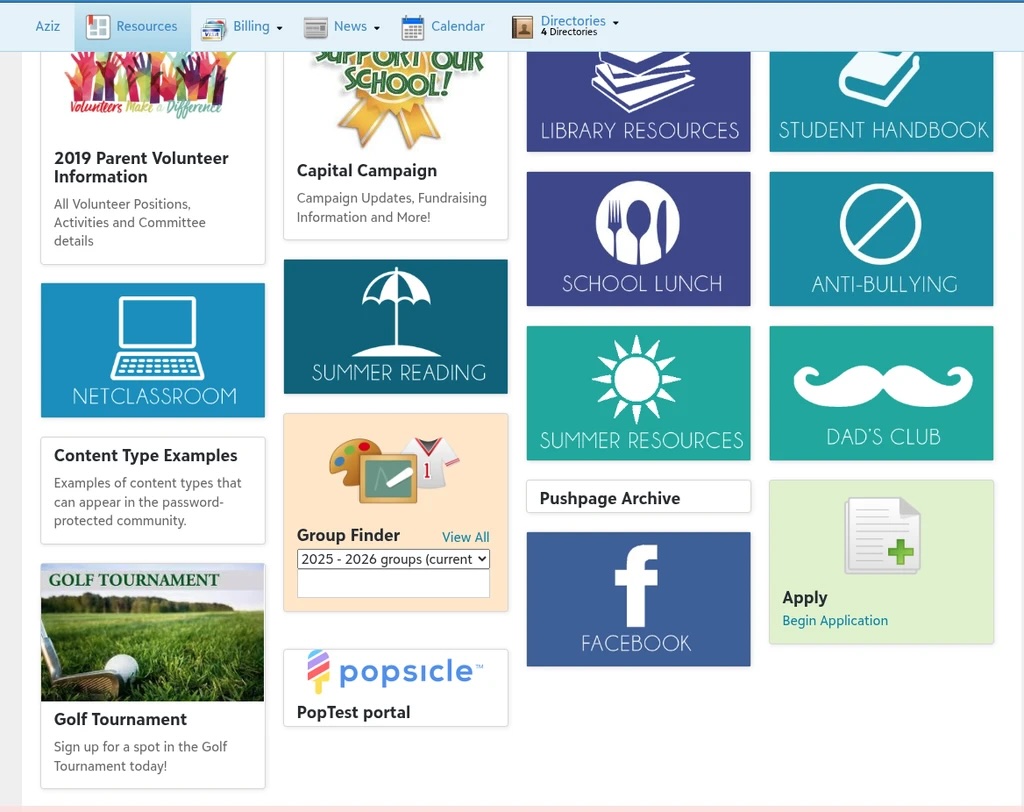
It will ask you to grant permission for Popsicle. Click 'Authorize' and it will redirect you directly to the Popsicle portal.