
All about Scholarships
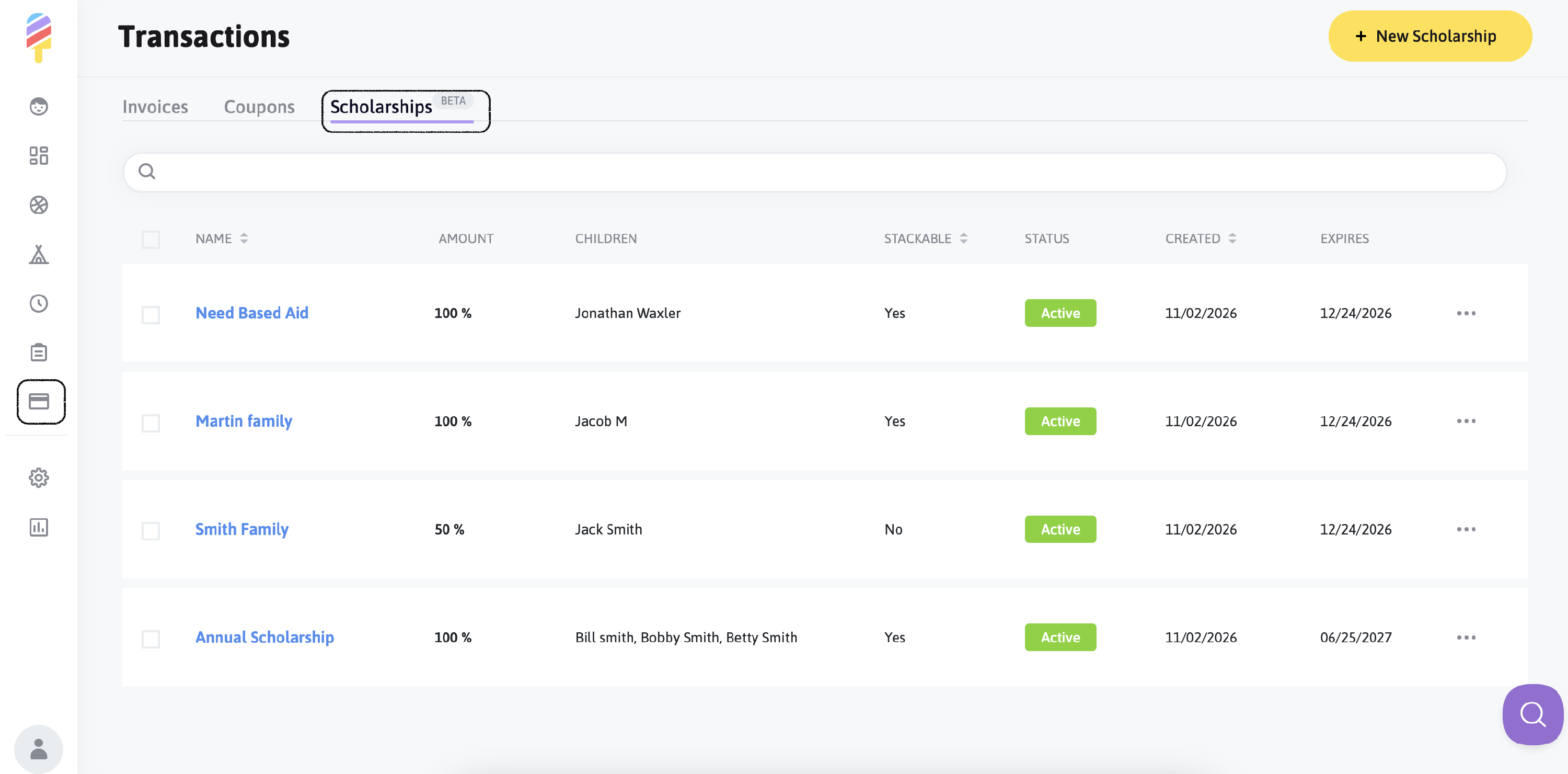
The Scholarship tab is visible to Super Admin and Manager roles.
On the Scholarships page, you can:
- Add new scholarships.
- View the list of all scholarships and their detailed information.
- View Scholarship usage.
- Delete scholarships.
To view Scholarship options, navigate to the ‘Transactions’ page first → then access the Scholarship tab.
Add a New Scholarship:
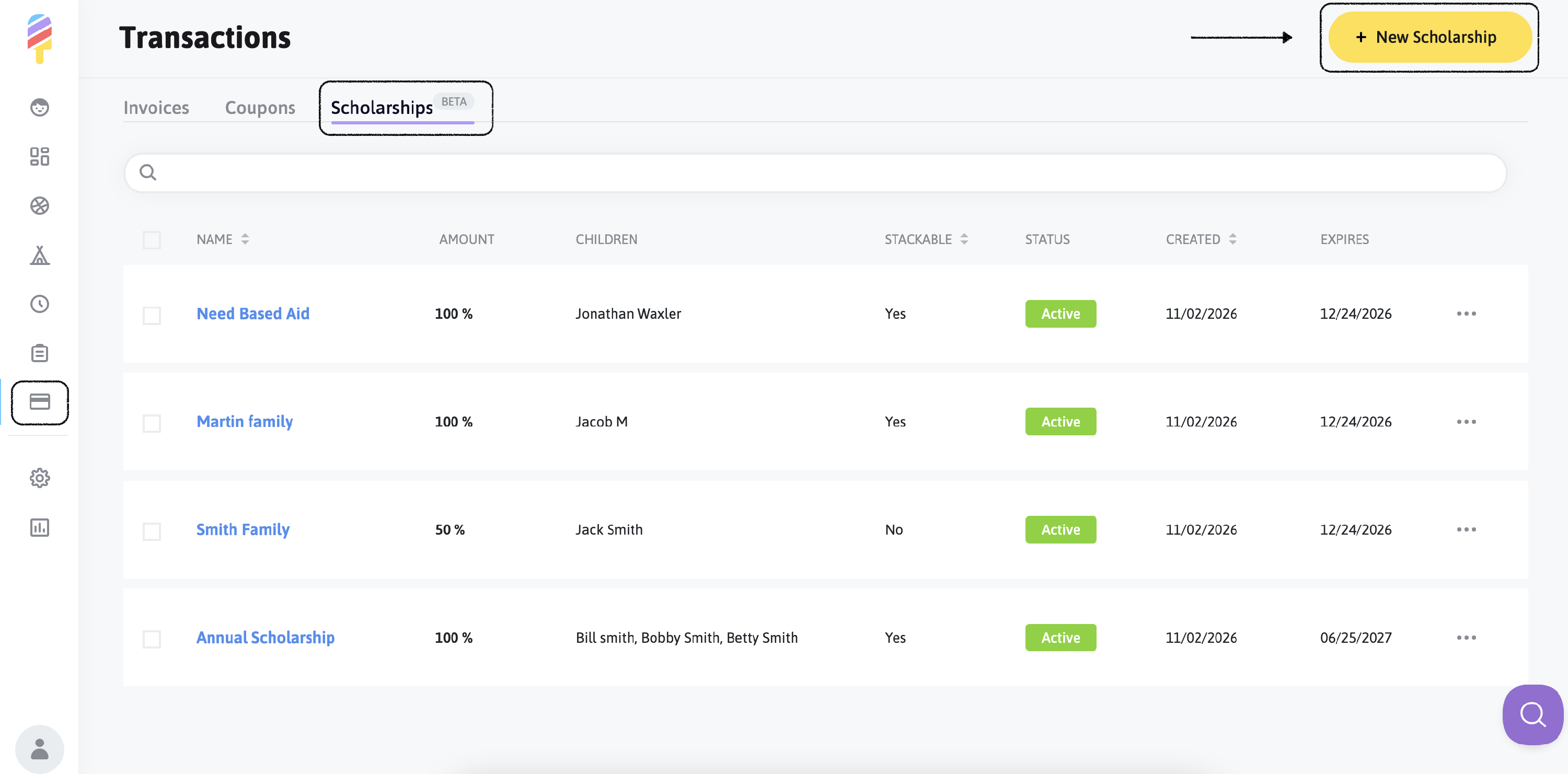
- Click on "New Scholarship"
Once you've clicked on the "New Scholarship" option, you will see a side menu open, where you can customize your scholarship to suit your needs:
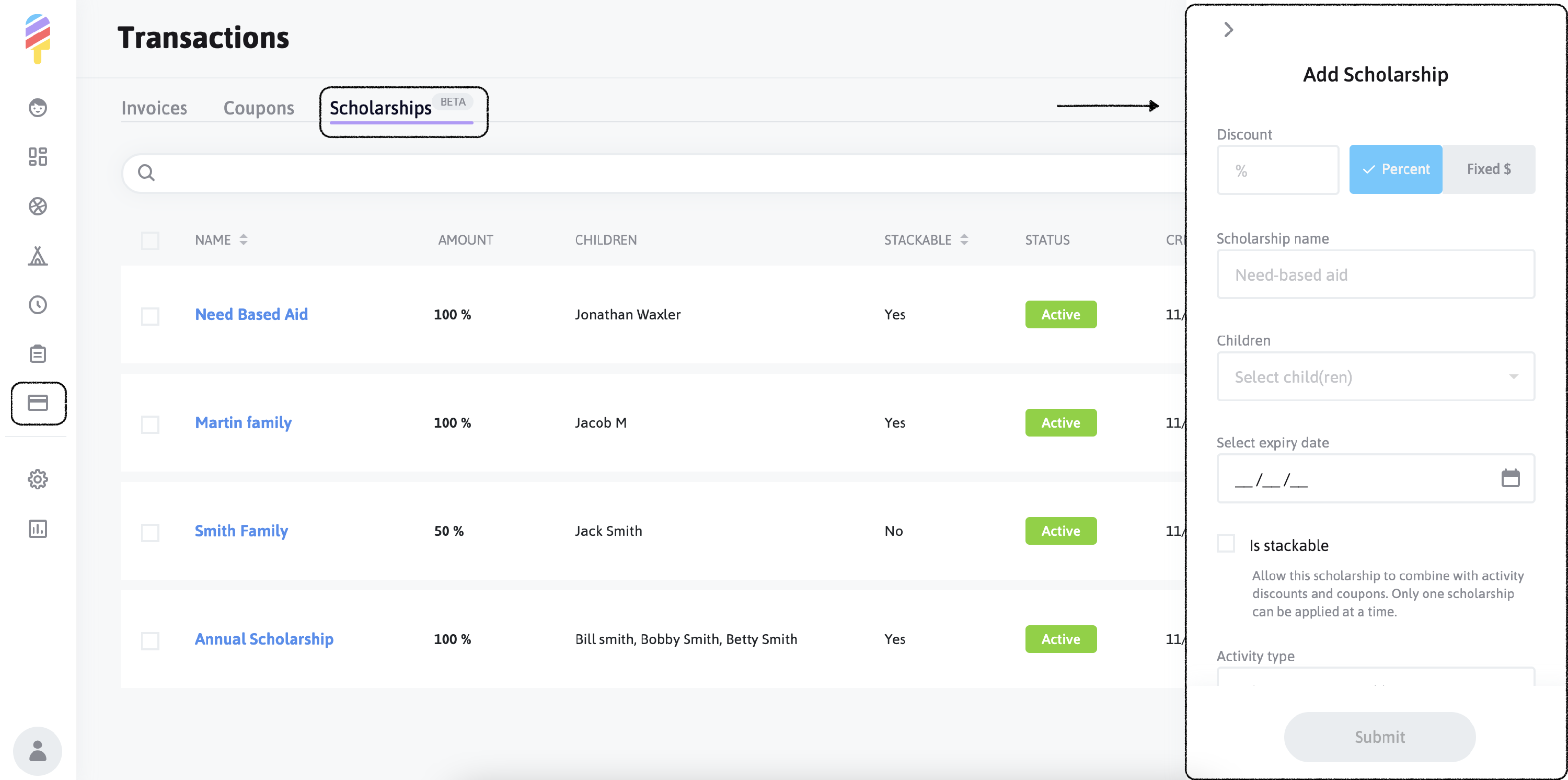
Fill all fields with valid data:
- Percent/Fixed: Specify the type of discount (percentage or fixed amount).
- The amount of the discount should be more than '0'.
- Scholarship Name: Enter a unique name for the scholarship.
- Unable to have two or more scholarships with the same code within one school.
- The system prevents the creation of a new scholarship if the unique code entered already exists in the database.
- Scholarship name can have a maximum of 25 characters.
- The Children list displays all the children connected to the school. Those who have at least one active scholarship are still displayed in the list, but are disabled, as we do not allow more than one active scholarship at a time—Admin/Manager cannot select this child.
- Admin/Manager can select multiple children for one scholarship.
- Set Expiry Date
- When the ‘is stackable’ checkbox is checked - the scholarship will combine with activity discounts and coupons.
- User can select All activity types or just class or camp or aftercare or classes and camp or camps and aftercare, or they can just leave the field empty.
- Scholarships can be applied to a specific activity.
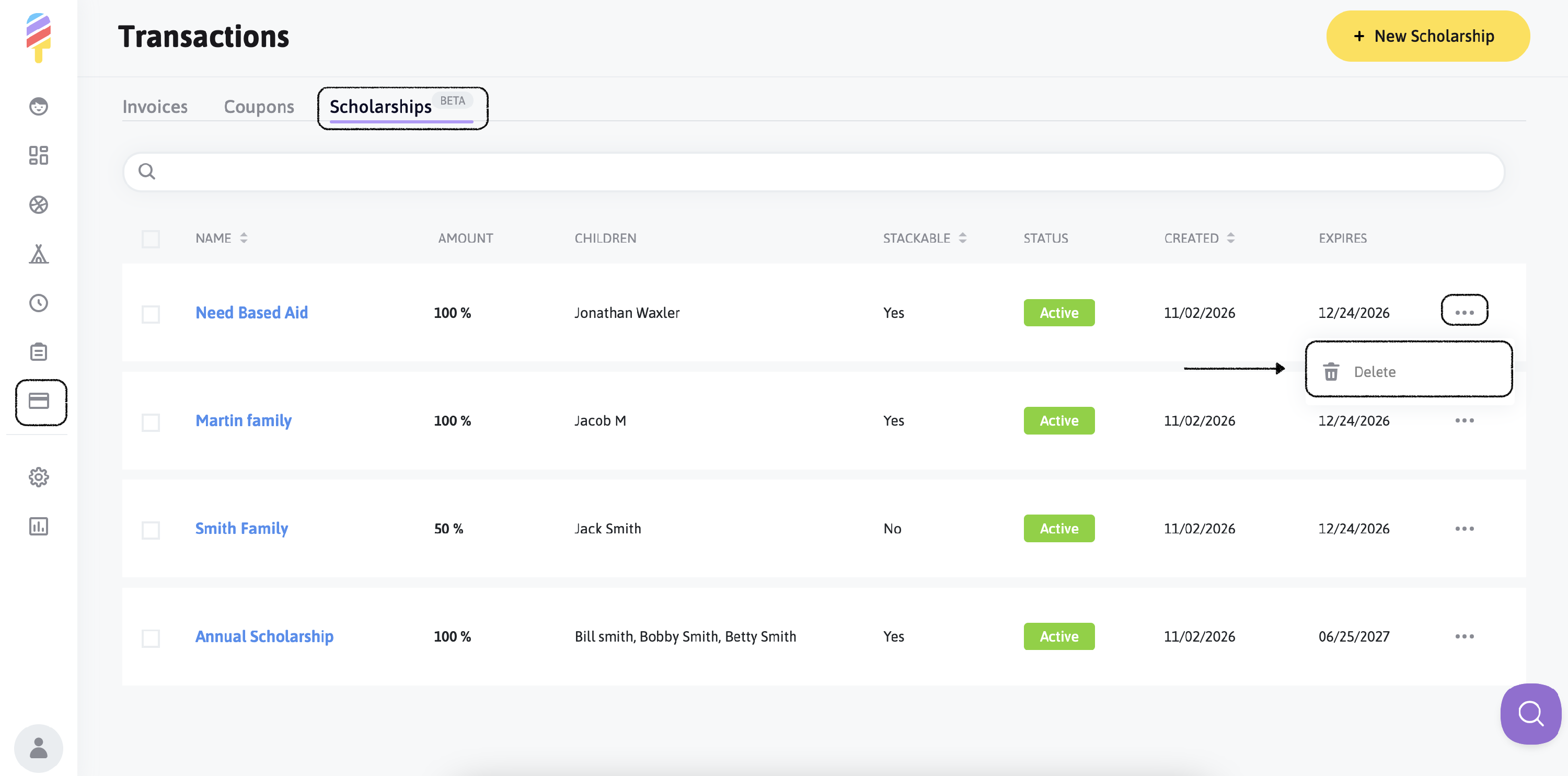
- User has an option to delete the scholarship. If a scholarship was previously applied to an enrollment, it will remain valid for that enrollment. Deleting the scholarship will not remove or affect past invoices or payments.
The scholarship is applied automatically once all the requirements are met: child, activity type, or activity itself.