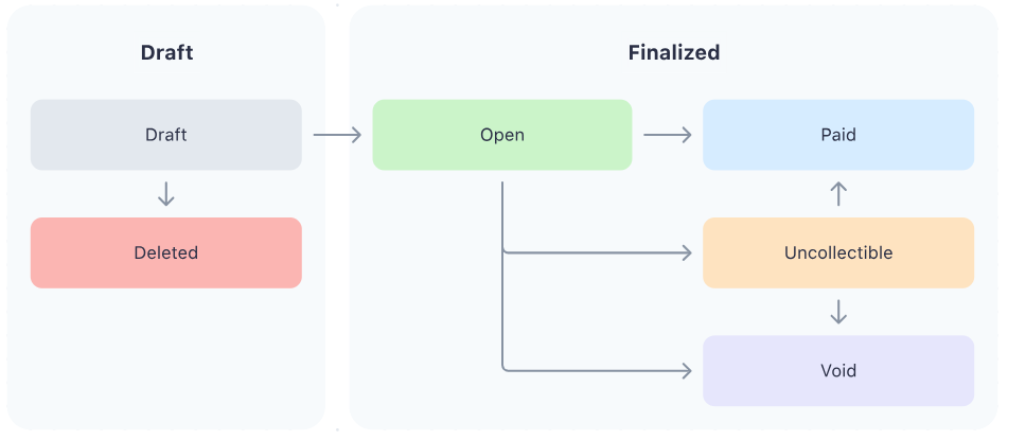
Invoice Statuses
Have questions about the way a particular transaction is labeled? Let us clear things up!
Invoices may appear in a few different states:
- Draft: The invoice has been created but is not yet finalized.
- Open: The invoice has been sent to the parent and is awaiting payment.
- Paid: The invoice has been paid in full.
- Past Due: The invoice is overdue for payment.
- Void: The invoice has been canceled.
- Uncollectible: The invoice is marked as uncollectible due to reasons like non-payment or inability to collect funds.
Let’s take a look at each status, the possible actions while in this status, and other important considerations:
Draft
While in this status, any part of the Invoice can be edited, and the draft can be deleted unless the Invoice is created by a Subscription. Only draft Invoices can be deleted, and deleted drafts cannot be recovered. When the Invoice is ready to be used, it can be finalized; a draft Invoice cannot be paid.
- Note: Once finalized, an Invoice cannot be moved back to draft status.
Open
While in Open status, the Invoice has been finalized and is awaiting payment from the customer. Finalizing the Invoice copies some information about the Customer and makes those fields immutable, as well as generating a unique URL where the customer can pay the invoice, and a link to download a PDF of the invoice. Only some elements of an Open Invoice can be updated, such as the memo or metadata, while fields like amount and customer cannot be altered.
In the Dashboard, additional detail about the current state may be displayed through badges such as “Past Due” or “Retrying”, but these are not statuses in their own right, and the Invoice is still in “Open” status. If you need to update the Invoice amounts, you can use credit notes, but if you require more substantial changes, you can void the Invoice and duplicate the voided Invoice to create a new Invoice which you can change.
Paid
This is a terminal state. The Invoice cannot be changed once it is paid; “paid” Invoices cannot be moved to “Open.”
- Note: When a customer has an open Invoice in Stripe and you receive payment through some other channel, you can mark the Invoice as “paid out of band.” To mark an Invoice paid out of band in the Dashboard, from the Invoice details page, click More and select Change invoice status. In the resulting dialog, select the Paid option.
Uncollectible
When in this status, the Invoice cannot be edited, and its status can only be changed to “Void” or “Paid.”
Void
This is a terminal state. Once the Invoice has been voided, no further changes can be made.