Drop-in Roster Details
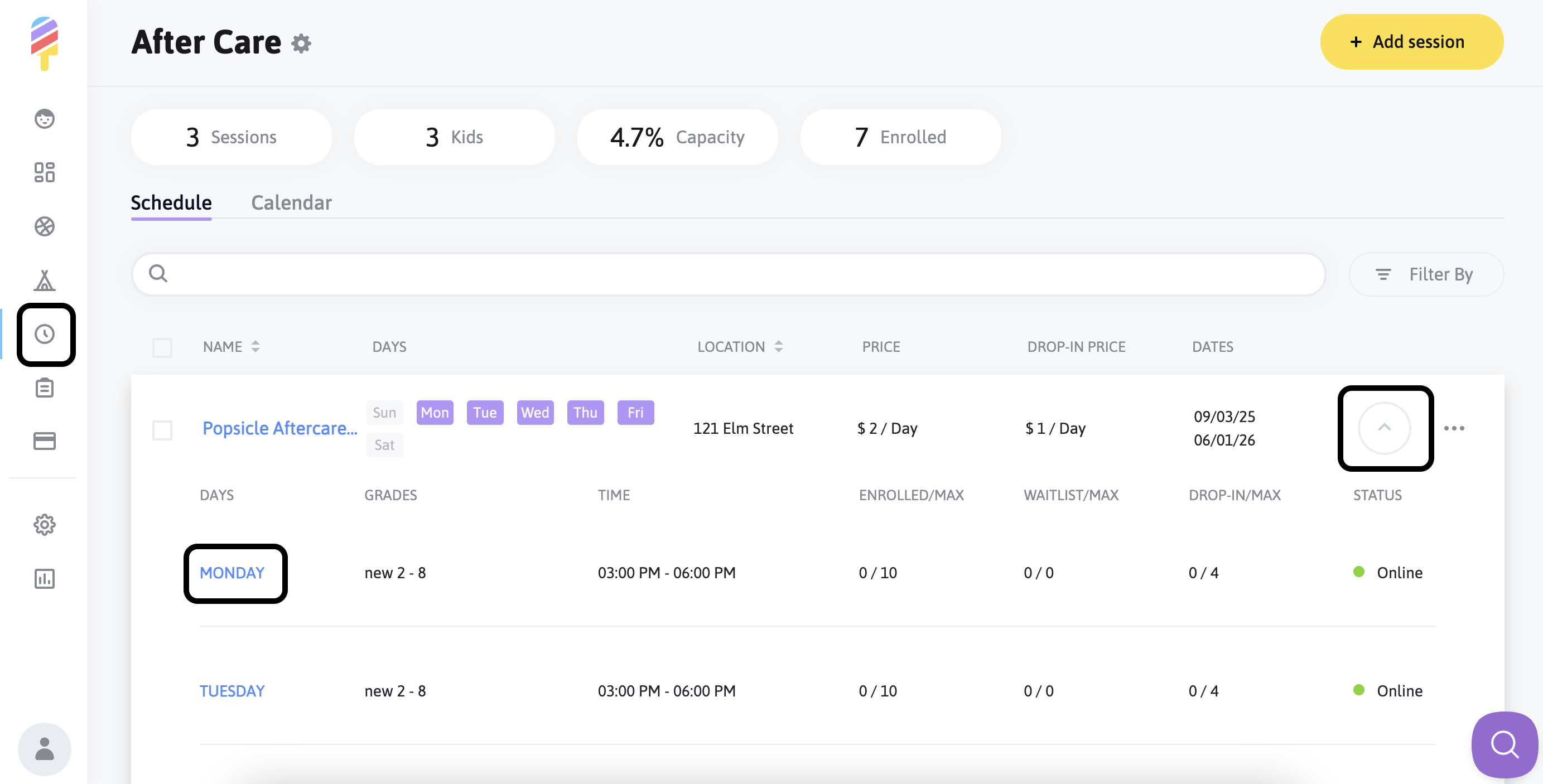
To view your Drop in rosters for Aftercare activities, you will first click on the Aftercare icon from the menu along the left side of the screen.
Once you've clicked on the appropriate icon, you will see the list of your aftercare names. To view their rosters, click on the arrow to the right of the Activity name, and then click on the appropriate day of the week:
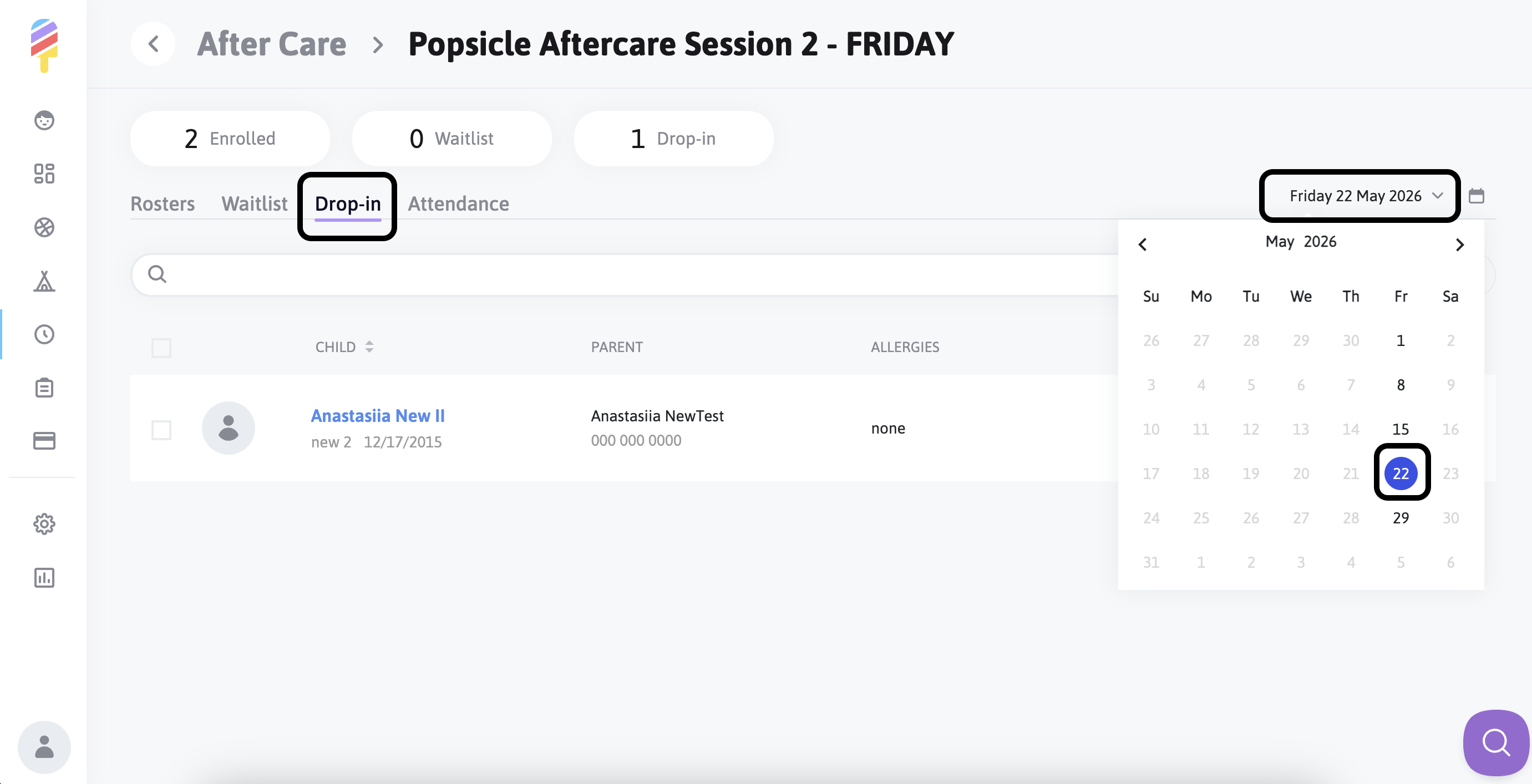
The roster will automatically appear with the statuses of all of the children. For Drop In Rosters, you will click on the Drop In tab, and ensure that the date at the right matches the day of the activity:
Roster Statuses
-
Invoiced
The invoice has been sent to the parent, but has not yet been paid. Payment must be completed manually.
Note: If the parent does not pay, the child remains on the roster with the Invoiced status until a school admin removes them.
-
Paid
The invoice has been successfully paid by the parent.
Roster Features
From the Drop-In Roster, Admins and Managers can perform the following actions:
- Edit children information
- Delete children from the roster
- Issue refunds
- Email a child’s parent
- Generate roster reports
Editing Child Information
Admins are able to edit information about a child via the roster page, by clicking on the three dots to the right of the child's name in the roster:
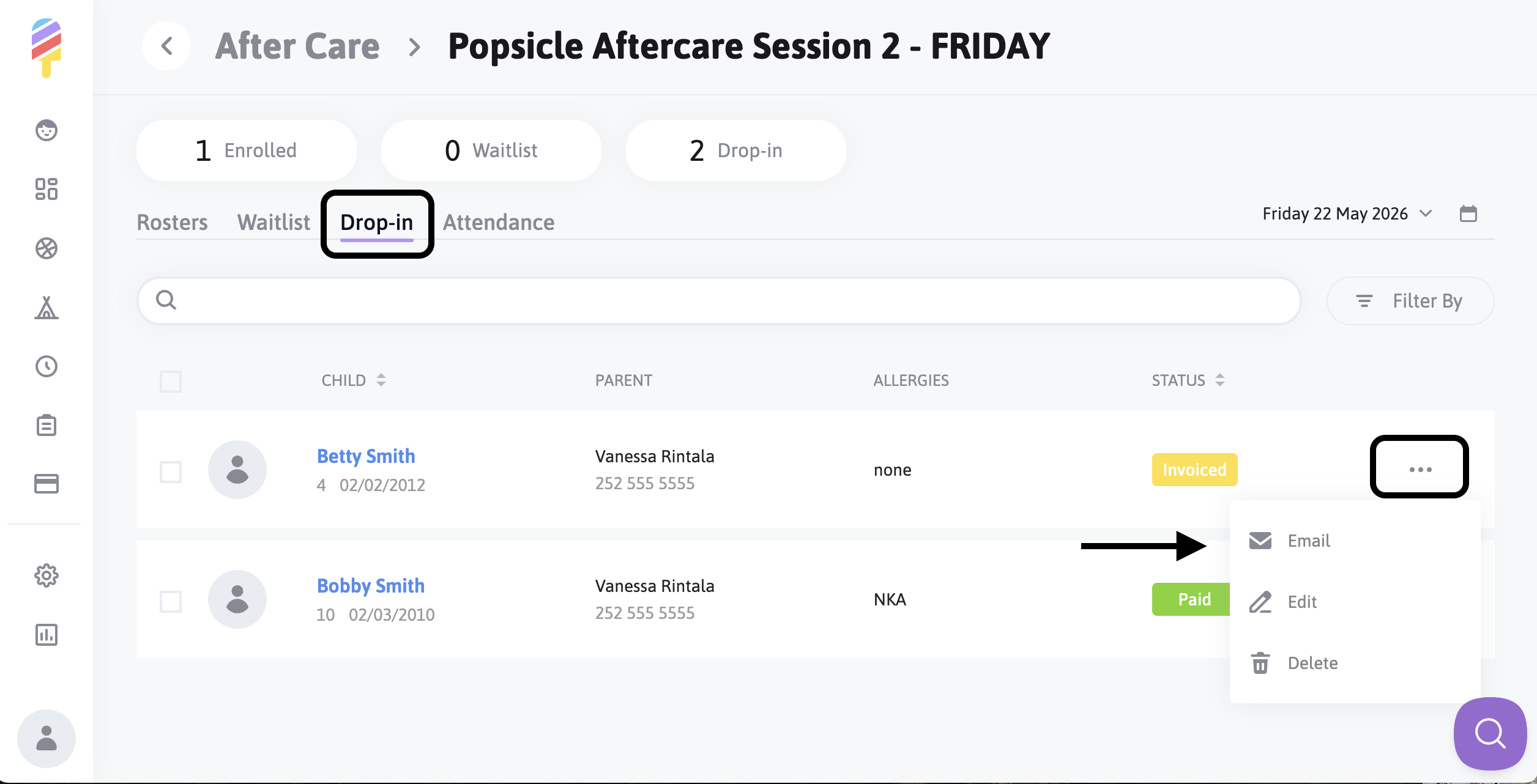
From the menu, you can:
- Email the child’s parent
- Add or update details (e.g., homeroom teacher, pickup information)
- Delete the child from the roster
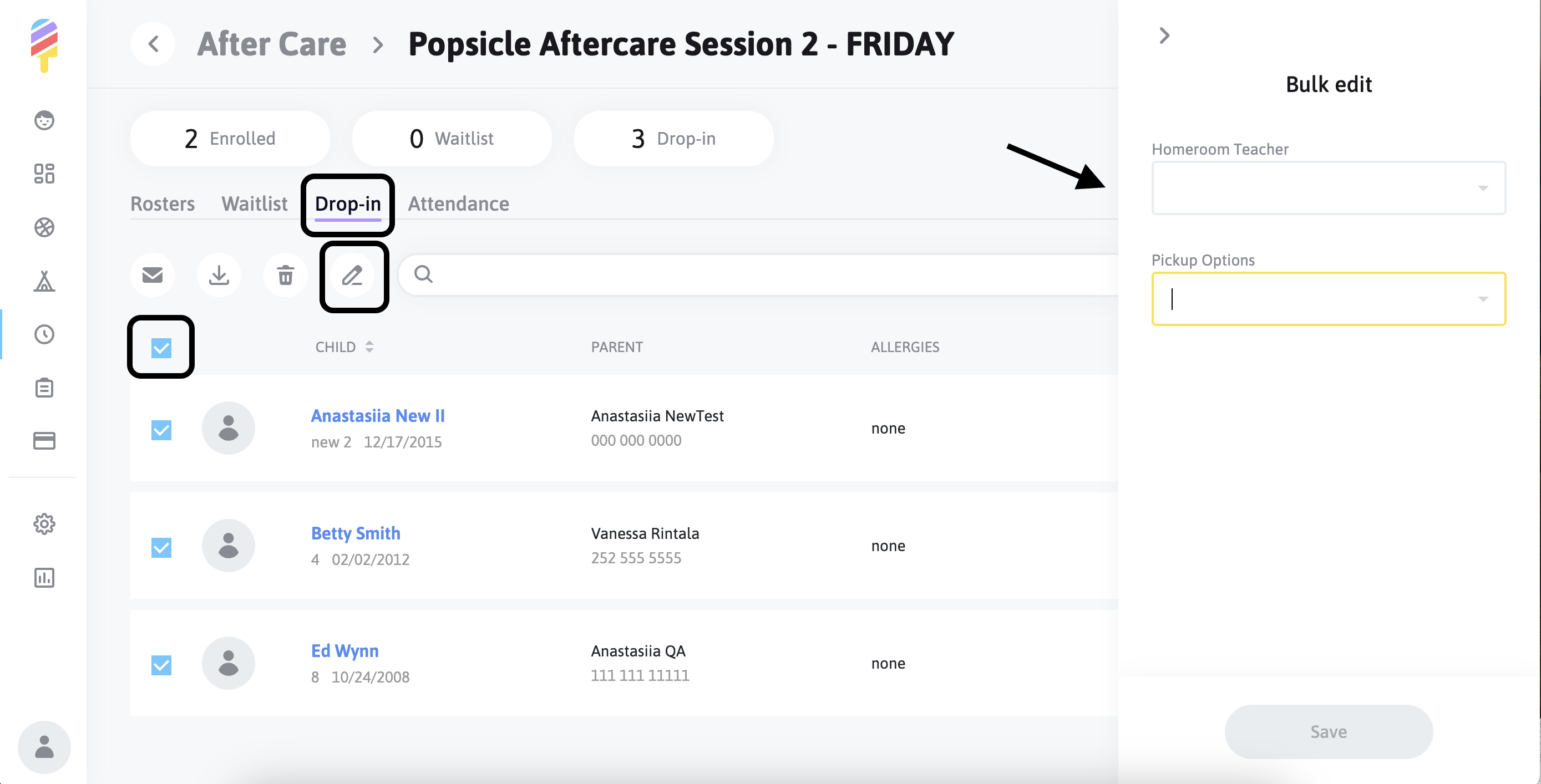
Admins are able to make these changes for each child individually, but there is also an option to select all or several children and make the changes for everyone simultaneously.
Deleting a Child & Issuing Refunds
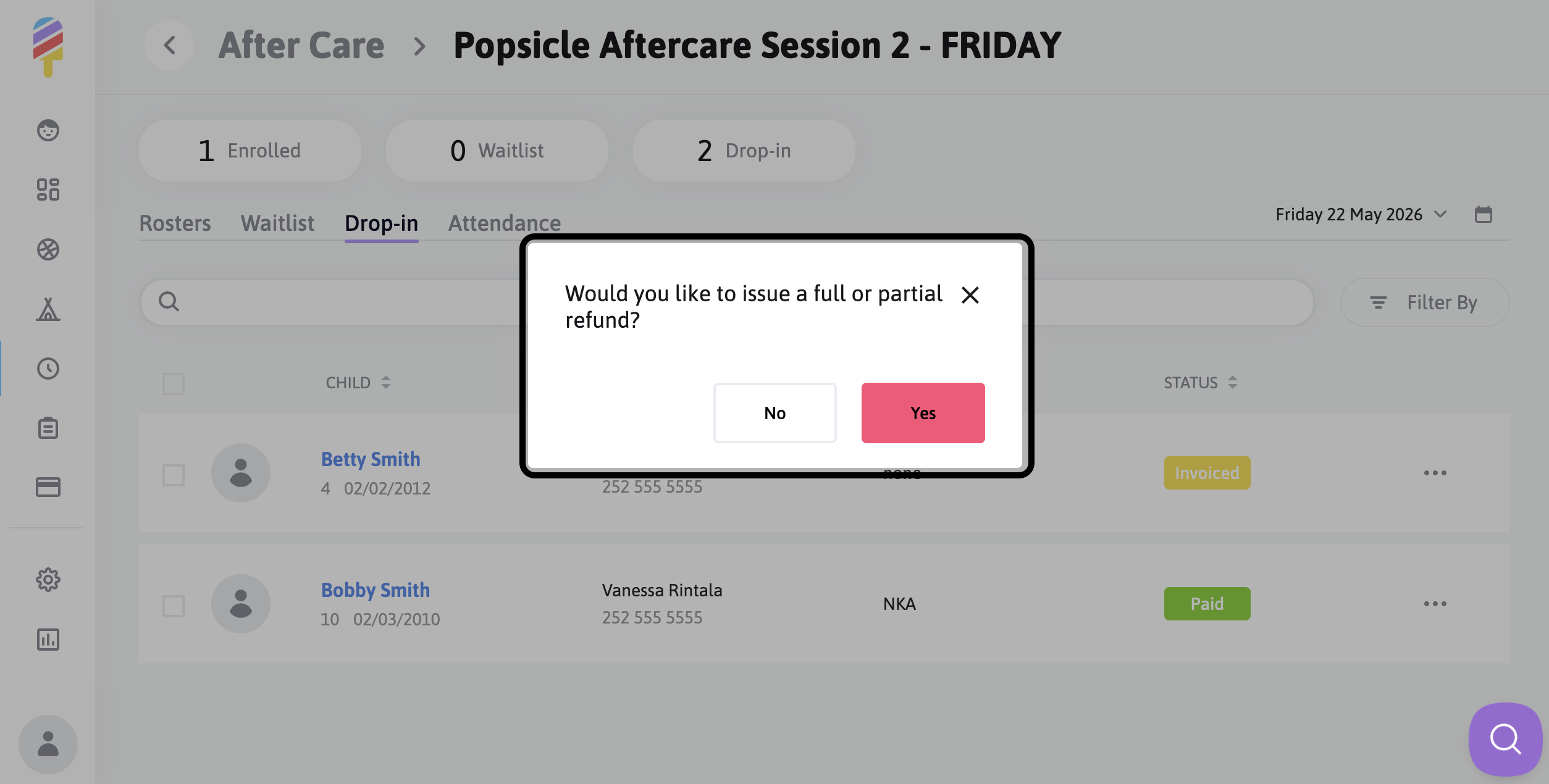
If you delete a child from the roster, you will be prompted to indicate whether you would like to issue a full or partial refund:
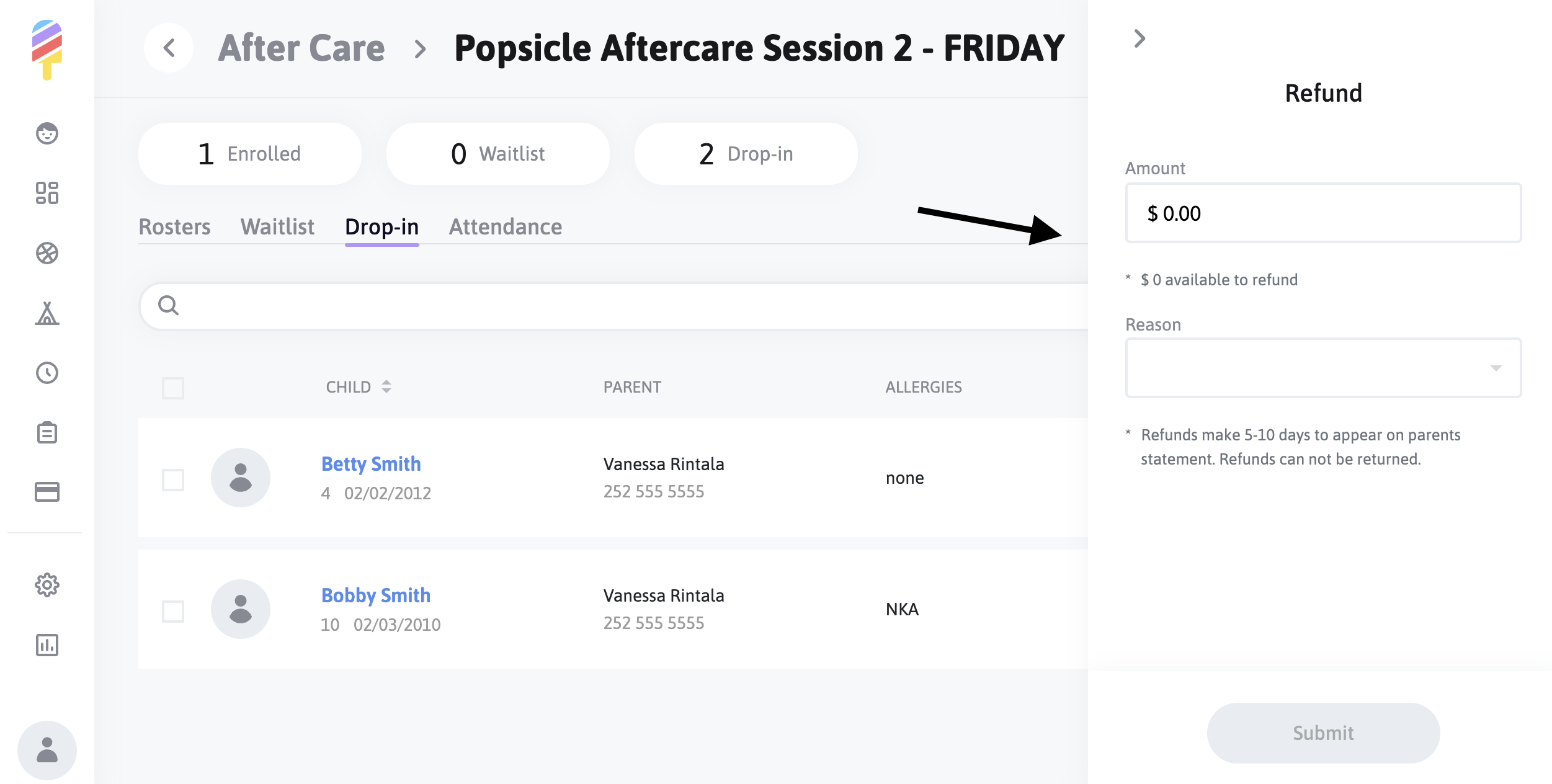
If issuing a refund, you can specify the amount and reason:
Generating a Roster Report
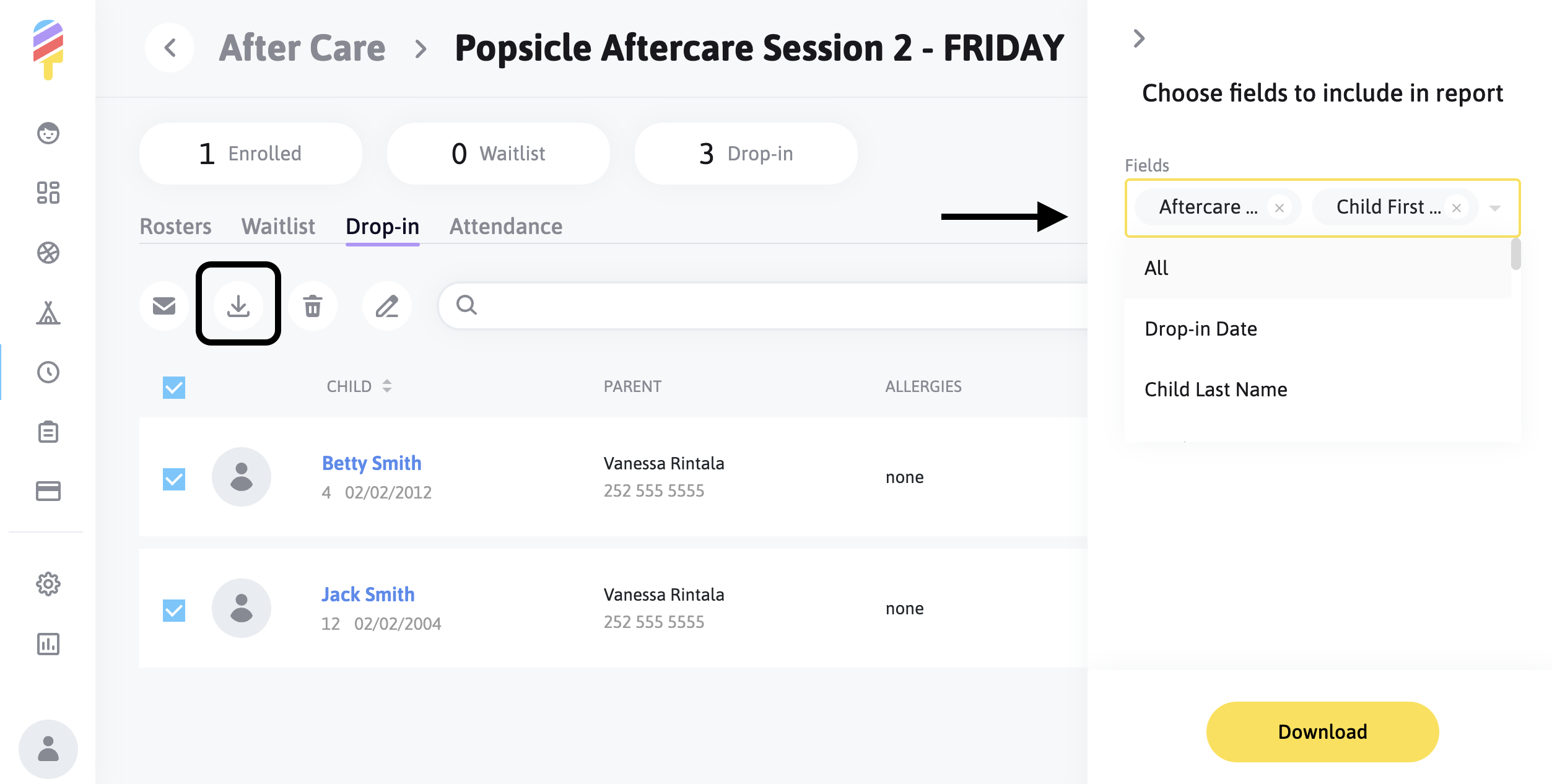
To run a report from a roster page, simply click on the checkboxes to the right of the children's names if you'd like their information included in the report, then click on the download icon that appears.
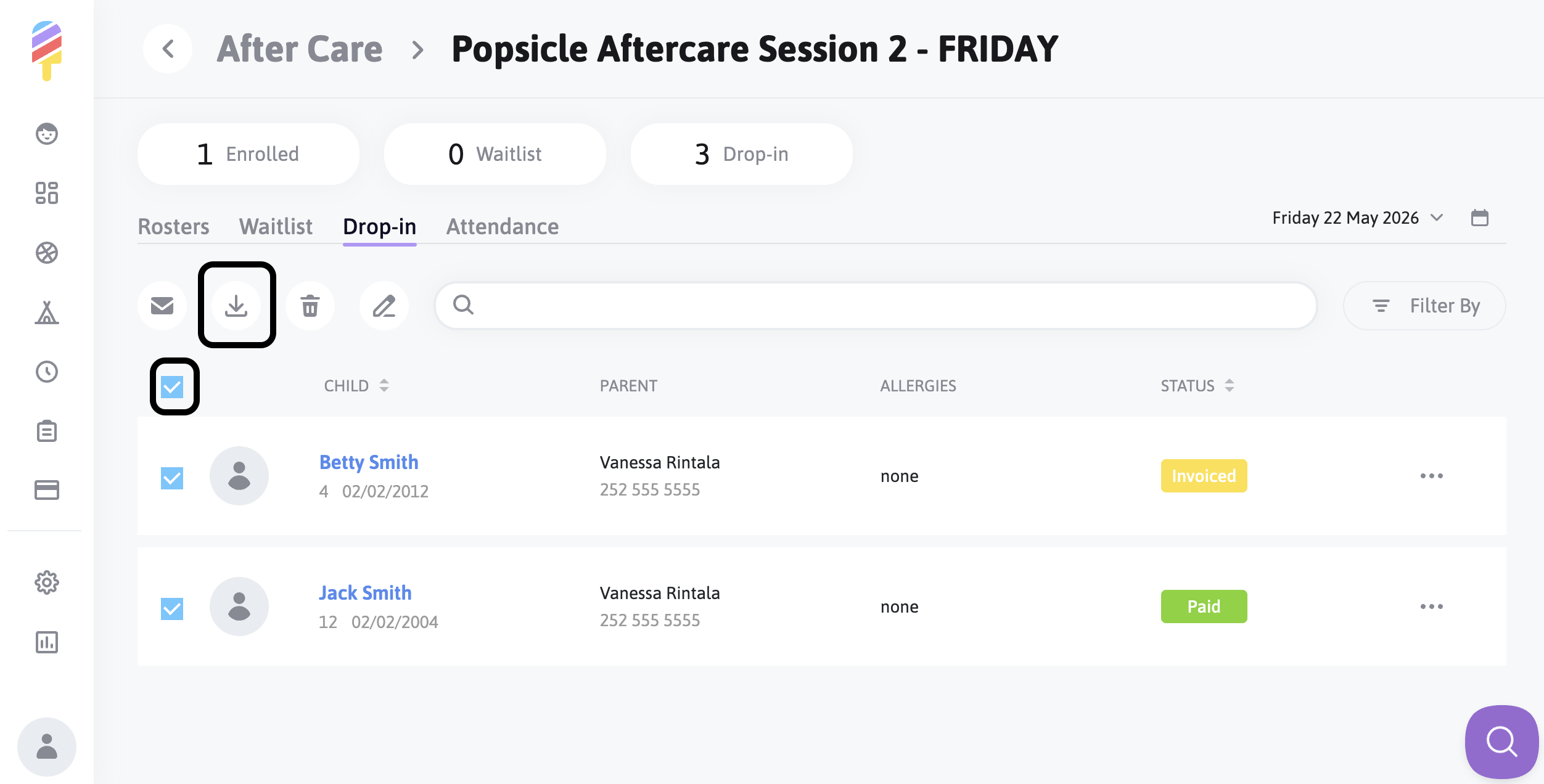
You'll choose the fields you would like to include in the report, and click "download."