
Adding children to the Drop-In roster manually
Adding as a Drop In
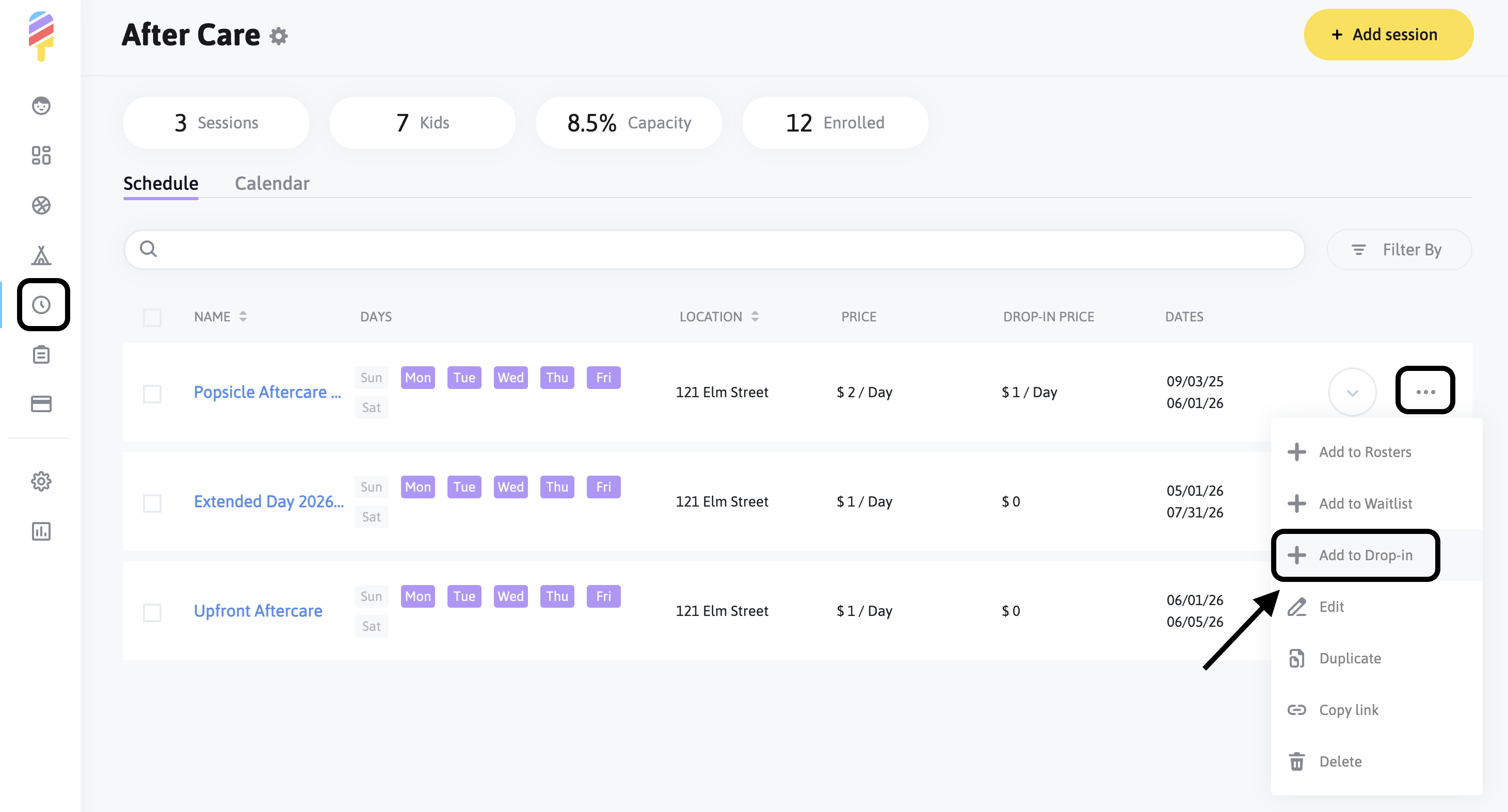
If the parent needs to register for one-off activities, or randomized days of the week, you would click on the "Add to Drop-In" option.
You will be able to choose the child's name and see a calendar of available days for registration. Once you choose the necessary days, click on "Invoice" or "Charge."
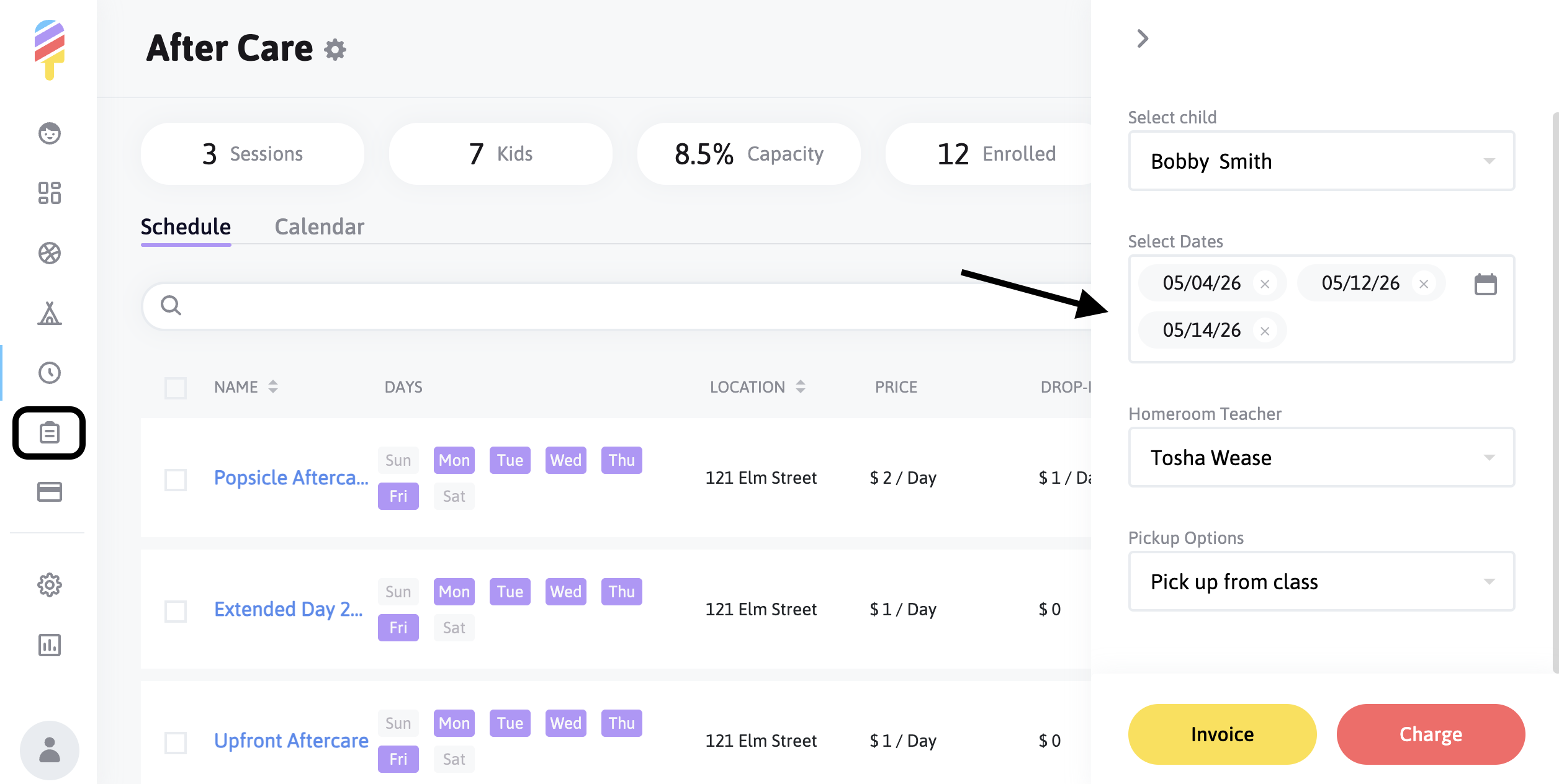
Note: The Invoice option sends an email notification to the parent with a payment link, allowing them to pay at any time, while the Charge option automatically charges the card they have on file.
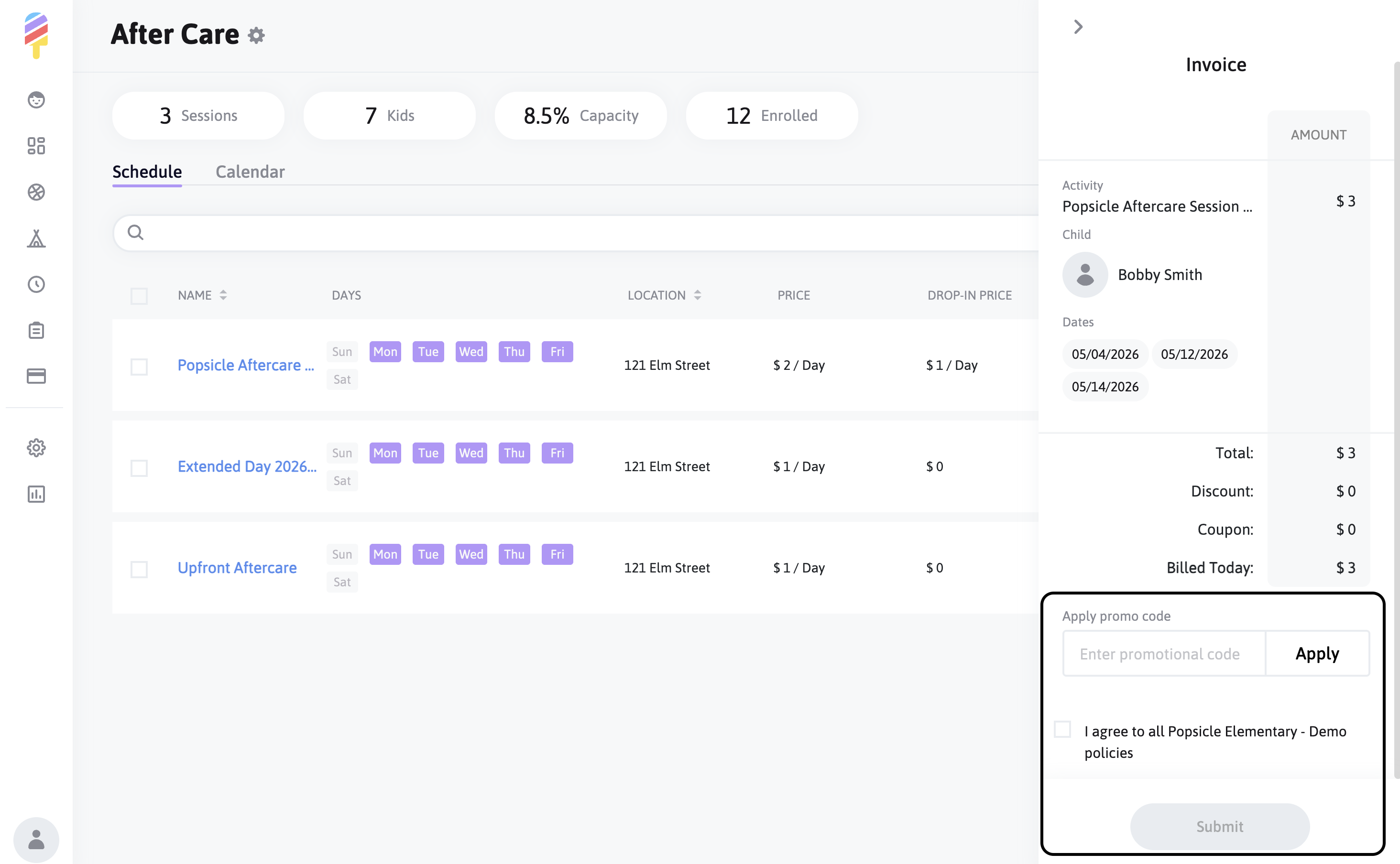
The next page will allow you to see any itemizations, as well as enter a discount code if applicable. Once the policies are agreed to, you are able to click Submit to finalize.
**Please note—Adding as a Drop In will only commit the parent to the particular date they select at registration.